In this article
- What Does “This Site Can’t Be Reached” Mean?
- Common Causes of the Site Can’t Be Reached Error
- Fix 1: Restart Your Internet Connection
- Fix 2: Turn Off Your Firewall and Antivirus for a Moment
- Fix 3: Clear Your Browser Cache
- Fix 4: Flush Your DNS Cache
- Fix 5: Change Your DNS Servers
- “This Site Can’t Be Reached” on Chromebook
- Extra Tips for Google Chrome
- Still Not Working? Try These Last Steps
- Keyword Note
- Conclusion
You type a web address and press Enter. Instead of the page, you see a message: “This site can’t be reached.” It is annoying, especially when you are in a hurry.
The good news is that this error is usually easy to fix. In most cases, the problem is with your internet connection, your browser, or your DNS settings, not with the website.
In this guide, you will learn what the “this site can’t be reached” error means, why it happens, and 5 easy ways to fix it. The steps work for Windows, Mac, and Chromebook.
What Does “This Site Can’t Be Reached” Mean?
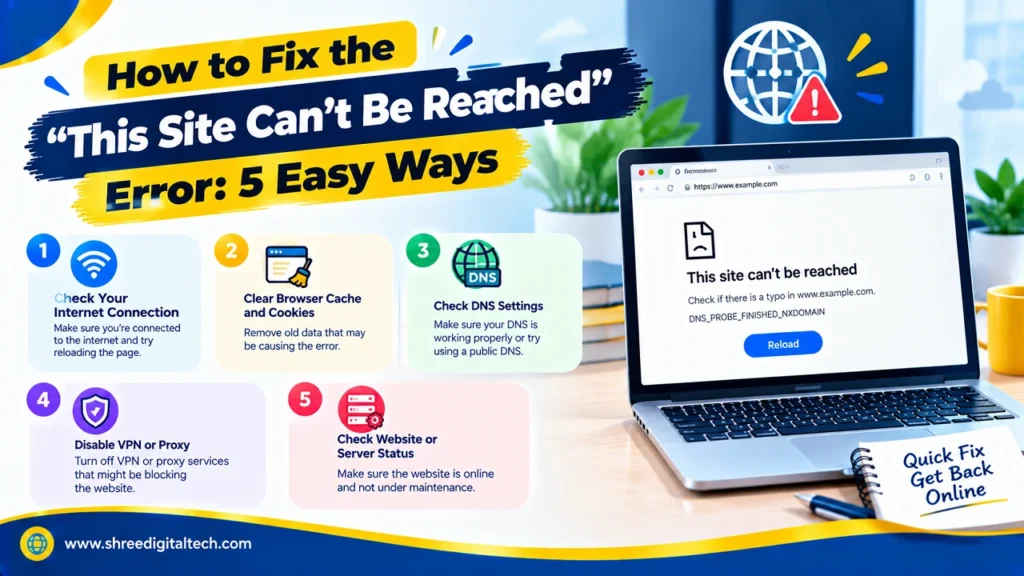
This message means your browser tried to open a website but could not connect to it. Chrome shows this message a lot. It is a general message, so it can appear with many different error codes, such as:
- DNS_PROBE_FINISHED_NXDOMAIN
- ERR_CONNECTION_RESET
- ERR_CONNECTION_TIMED_OUT
So when you see Chrome “this site can’t be reached”, the real reason may be different each time. That is why we try a few fixes, starting with the simplest.
Also Read: How to Fix a 500 Internal Server Error | 2026 Guide
Common Causes of the Site Can’t Be Reached Error
Here are the most common reasons you may see the site can’t be reached error:
- Weak or broken internet connection. Your Wi-Fi or router may not be working properly.
- DNS problems. DNS works like a phone book for the internet. It turns a website name into an address your computer can find. If DNS fails, the site will not load.
- Old cache data. Your browser and computer save small files to load sites faster. If these files are old or damaged, they can cause errors.
- Firewall or antivirus. Security software sometimes blocks a website by mistake.
- VPN or proxy settings. Wrong settings can stop a site from opening.
- Outdated browser or extensions. An old browser or a bad extension can break your connection.
Fix 1: Restart Your Internet Connection
This is the easiest fix, so try it first. Sometimes your internet looks fine but has a small hidden problem.
- Unplug the power cable of your router or modem.
- Wait about 1 minute.
- Plug it back in.
- Wait for the lights to turn normal, then open the website again.
Also try opening a different website. If other sites do not open either, the problem is your internet connection. If other sites open fine, move on to the next fix.
Fix 2: Turn Off Your Firewall and Antivirus for a Moment
Your firewall and antivirus protect your computer, but sometimes they are too strict. They can block a safe website by mistake.
To test this:
- Turn off your firewall and antivirus for a short time.
- Try to open the website again.
- Turn them back on right away, whether the site opens or not.
If the site opens, your security software is the problem. You can add the website to the “allowed” or “exceptions” list in your settings. Only do this for websites you trust.
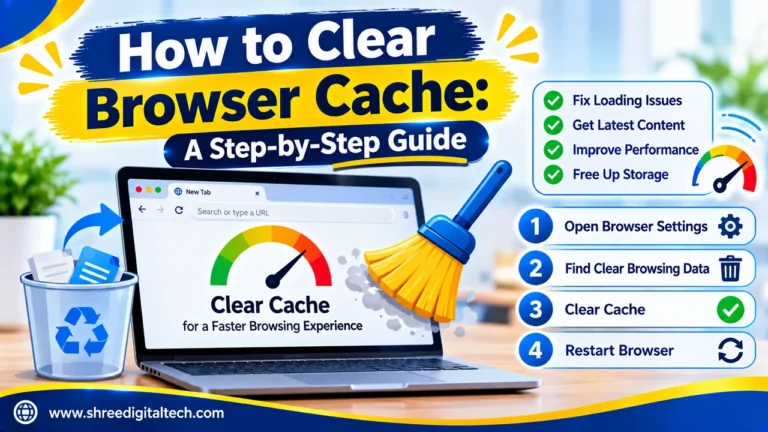
Fix 3: Clear Your Browser Cache
Your browser saves files from websites you visit. This helps pages load faster. But if these saved files get old or damaged, they can cause this site can’t be reached message.
To clear the cache in Google Chrome:
- Click the three dots in the top right corner.
- Go to Settings > Privacy and Security > Clear Browsing Data.
- Select Cached images and files. You can also select Cookies and other site data.
- Click Clear data.
Now reload the website.
To clear the cache in Firefox: Go to Settings > Privacy & Security, find “Cookies and Site Data”, and click Clear Data.
To clear the cache in Microsoft Edge: Go to Settings > Privacy, search, and services, click Choose what to clear, and then click Clear now.
Also Read: How to Fix HTTP 451 Unavailable for Legal Reasons
Fix 4: Flush Your DNS Cache
Your computer also saves website addresses in its own DNS cache. If one saved address is old or wrong, your computer cannot find the site. Flushing the DNS cache deletes these saved addresses so your computer can get fresh ones.
How to Flush DNS on Windows (Fix for “This Site Can’t Be Reached” on Windows 10)
If you see this site can’t be reached on Windows 10, this fix often helps. The steps are almost the same on Windows 11.
- Click the Start menu and type cmd.
- Right-click Command Prompt and choose Run as administrator.
- Type the following command and press Enter:
ipconfig /flushdns
- You should see a message saying the DNS cache was flushed.
How to Flush DNS on Mac
- Press Command + Space and type Terminal.
- Open Terminal and type this command:
sudo dscacheutil -flushcache; sudo killall -HUP mDNSResponder
- Press Enter and type your admin password if asked.
Note: Flushing DNS may disconnect your internet for a few seconds. Save your work first.
Fix 5: Change Your DNS Servers
By default, your internet provider chooses your DNS servers. Sometimes these servers are slow or not working well. Switching to a free public DNS server can fix the site can’t be reached error. It can even make browsing faster.
Two popular choices are:
| DNS Provider | Primary | Secondary |
| Google DNS | 8.8.8.8 | 8.8.4.4 |
| Cloudflare DNS | 1.1.1.1 | 1.0.0.1 |
Change DNS on Windows
- Open Control Panel > Network and Internet > Network and Sharing Center.
- Click Change adapter settings.
- Right-click your active connection and choose Properties.
- Select Internet Protocol Version 4 (TCP/IPv4) and click Properties.
- Choose Use the following DNS server addresses.
- Type in the DNS addresses from the table above and click OK.
Change DNS on Mac
- Go to System Preferences > Network.
- Select your network and click Advanced.
- Open the DNS tab.
- Click the + button and add the new DNS address.
- Click OK.
“This Site Can’t Be Reached” on Chromebook
If you see this site can’t be reached on a Chromebook, you can try these steps:
- Restart your Chromebook. A simple restart fixes many small problems.
- Check your Wi-Fi. Click the network icon at the bottom right and make sure you are connected.
- Clear browsing data. Open Chrome, press Ctrl + Shift + Delete, select cached files and cookies, and clear them.
- Change your DNS. Go to Settings > Network, select your Wi-Fi network, open Network, and set a custom name server such as Google DNS (8.8.8.8).
- Update your Chromebook. Go to Settings > About ChromeOS and check for updates.
Also Read: How to Fix a 502 Bad Gateway Error: Step-by-Step Guide
Extra Tips for Google Chrome
If the error only happens in Chrome, try these browser-specific fixes:
- Update Chrome. Click the three dots, then Help > About Google Chrome. Chrome will check for updates by itself.
- Turn off extensions. Type chrome://extensions/ in the address bar and turn off your extensions one by one. Ad blockers and VPN extensions often cause this problem.
- Reset Chrome settings. Go to Settings > Reset settings > Restore settings to their original defaults.
Still Not Working? Try These Last Steps
- Turn off your VPN or proxy. Go to your network settings and disable them for a moment, then test the site again.
- Reset your network adapter. In Windows, open the Network and Sharing Center and reset or reinstall your network driver.
- Contact your internet provider (ISP). If nothing works, the problem may be on their side. Tell them which site you cannot open and which fixes you have tried.
- Contact your hosting provider. If the problem is with your own website, your hosting company can check for server problems.
Keyword Note
I used all your keywords except inurl:cant. It is a Google search operator, not a natural phrase, so it would look odd inside the content. If you use it for research, it is better placed in your URL slug, for example /this-site-cant-be-reached/.
Conclusion
The “this site can’t be reached” error looks scary, but it is usually simple to fix. Start with the easiest step and move forward only if needed:
- Restart your internet connection.
- Turn off your firewall and antivirus for a moment.
- Clear your browser cache.
- Flush your DNS cache.
- Change your DNS servers.
One of these five steps will solve the site can’t be reached problem in most cases. If none of them work, get help from your internet provider or hosting company.
Ask AI about this article
Get a quick summary or ask follow-up questions.

Akash Yadav
Part of the Shree Digital Tech team, helping businesses in the USA, UK, Canada, Australia, Europe and India grow with SEO, paid media, content and websites.