You open a website and instead of the page you see “502 Bad Gateway”. It’s frustrating but it’s one of the most common web errors and usually can be fixed. This guide explains what it is, why it happens, and how to fix it, for both visitors and website owners.
What Does 502 Bad Gateway Mean?
If your question is “what does 502 bad gateway mean?” then the answer is simple. A 502 error means that one server is receiving a bad or blank response from another server.
When you request to visit a site, it often doesn’t go straight to the main server. It first goes through a middle server, called a gateway or proxy. This can be a CDN, a firewall or a load-balancer. The gateway forwards your query to the main server (sometimes called the origin or upstream server). If the main server does not respond, or gives you a broken one, then the gateway cannot show you the page. Instead it shows you a 502 error.
Imagine a drive-thru. You place your order at the window. The staff member hands it to the kitchen. “Sorry, I got a bad response from the kitchen” is all the staff member can say if the kitchen doesn’t respond. That’s a 502.
Also Read: How to Clear DNS Cache on Windows, Mac, Linux, and Browsers
What Is the 502 Status Code?
The 502 status code is part of the 5xx class of HTTP codes, which indicate that the problem is on the server. It’s not your fault. It’s not a typical “page not found” problem.
The same mistake might look different on different sites. You might see:
- 502 Bad Gateway
- Error 502
- HTTP Error 502
- 502 Proxy Error
- 502 Service Temporarily Overloaded
- A blank white page
The 502 error code is also easy to mix up with two similar ones:
| Code | Meaning |
|---|---|
| 502 Bad Gateway | The gateway got an invalid response from the main server |
| 503 Service Unavailable | The server is up but cannot handle the request right now (overload or maintenance) |
| 504 Gateway Timeout | The gateway got no response at all in time |
Common Causes of a 502 Error
An error 502 can come from many places. These are the most common causes:
- Server overload. Too many visitors at the same time can consume the server CPU and memory.
- Crashed or stopped server. The app behind the gateway may have crashed or never started.
- Wrong proxy settings. The main server is not reached by a bad port or address on the gateway.
- Hosting problems. The host may be down for maintenance or have a hardware problem.
- Firewall blocks. A strict firewall may block the gateway or CDN by mistake.
- Bad plugins or themes. In WordPress a bad plugin can kill the PHP process on the server.
- DNS problems. A recent DNS change may redirect some visitors to an old, offline server.
- Network issues. Communication can be broken by a fault between the two servers.
- CDN problems. The CDN was unable to connect to your origin server.
- Expired SSL certificate. If the gateway communicates with the main server using HTTPS and the certificate is broken or expired, the connection fails.
This mistake can affect any type of website, from small blogs, to massive streaming and social platforms. For example, a busy live site that is briefly overwhelmed will have many users searching for “chaturbate bad gateway error”. In those situations the cause is almost always on the website side. Usually waiting a few minutes helps.
Also Read: How to Fix HTTP 401 Unauthorized Error: 5 Proven Methods
Step-by-Step Fixes for Visitors
If you’re just browsing, try these quick fixes first.
Step 1: Reload the page. Many 502 errors last only a minute or two. Wait a little and press Ctrl + R (Windows) or Cmd + R (Mac). For a hard refresh that skips the cache, use Ctrl + Shift + R or Cmd + Shift + R.
Step 2: Empty your browser cache and cookies. Your browser is displaying a cached error page. When you clear the cache it loads a fresh copy.
Step 3: Use another browser or private browsing mode. This will show if it is a problem with your browser. Incognito mode also turns off most extensions, which can be helpful if your ad blocker is in the way.
Step 4: Clear your DNS cache. A stale DNS record might send you to the wrong server. Flushing clears old entries.
Step 5: Restart your modem and router. Unplug both for about 30 seconds, plug the modem in first, then the router.
Step 6: Try it on another device or network. If the site works on mobile data but not on your Wi-Fi, then the problem is with your local network.
Step 7: See if the site is down for everybody. You can try a free tool like “Down for Everyone or Just Me”. If the site is down for everyone you can only wait for the owner to fix it.
Step-by-Step Fixes for Website Owners
If the simple fixes do not work and the site is yours, dig deeper.
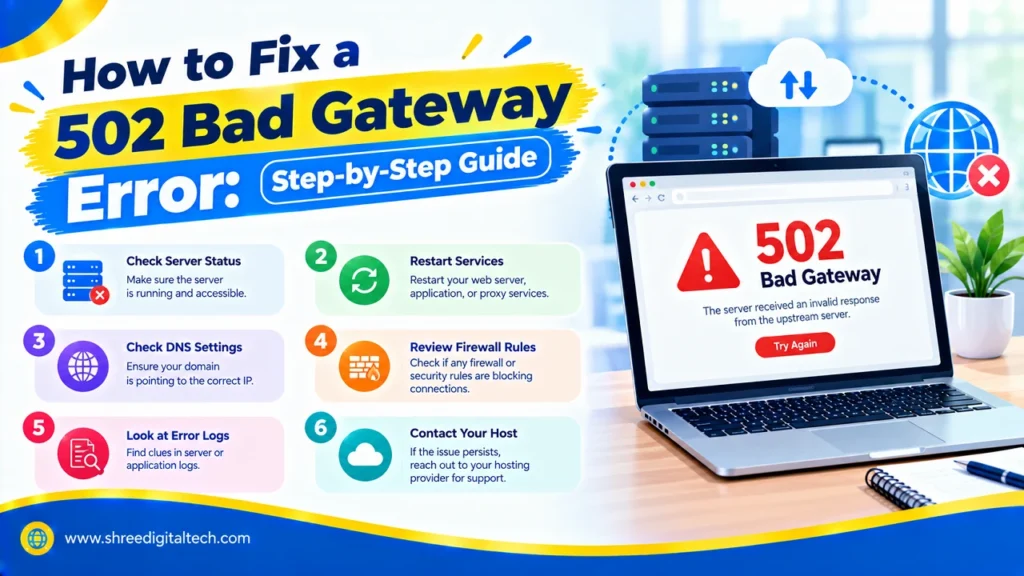
Step 1: Check that your main server is running. Make sure your app is running and listening on the right port. If it has crashed, restart it. Restarting services like Nginx, Apache, or PHP-FPM often clears the error.
Step 2. Verify server resource usage. High CPU / Full Memory / Too Many Running Processes : Check your hosting panel. If you are always close to the limit, upgrade your plan or switch to a more powerful host.
Step 3: Read your error logs. Logs show what happened just before the error. Search for the time of the 502 and look for lines like “connection refused,” “upstream timed out,” “PHP fatal error,” or “memory size exhausted.” These point to the exact problem.
Step 4: Check your proxy settings. In Nginx or Apache, confirm the proxy points to the correct host and port. Even a small typo causes 502 errors. Reload the server after changing the config.
Step 5: Raise timeout values carefully. If your backend is slow, increase the proxy read timeout and PHP values like max_execution_time. Do not raise them too high, because that can hide a real performance problem. Find out why the page is slow and fix that too.
Step 6: Test your plugins and themes (WordPress).
- Use FTP or your file manager to rename the plugins folder inside wp-content to plugins_old.
- Load your site. If the error is gone, a plugin is the cause.
- Rename the folder back, then turn plugins on one by one until the error returns.
- Remove or replace the plugin that causes it.
- If plugins are fine, switch to a default theme to test your theme.
Step 7: Pause your CDN. If you use a service like Cloudflare, pause it for a few minutes or switch the DNS record to “DNS only.” If the error goes away, the problem is between the CDN and your origin. Remember to turn the CDN back on afterward.
Step 8: Review firewall and security logs. Look for blocked requests from your CDN or gateway. If you find any, add those IP addresses to your allow list.
Step 9: Check DNS and SSL. If you moved hosts recently, DNS changes can take up to 48 hours to spread. Also make sure your SSL certificate is valid and its chain is complete.
Step 10: Check load balancer health. If you use a load balancer, make sure your servers pass their health checks. If every server is marked unhealthy, the load balancer has nowhere to send traffic and returns a 502.
Step 11: Contact your hosting provider. If nothing works, ask your host for help. Share the exact time the error started and the steps you already tried. They can check hardware, network, and server software problems that you cannot see.
Also Read: How to Resolve the YouTube “Something Went Wrong” Error on Any Device
Can a 502 Error Hurt Your SEO?
Usually a short outage of a few hours does no damage. If your site is down for a day or more with a 502 error, search engines could consider the site unreliable and may drop your pages from search results. Fix it fast. Also, ensure that your CDN is not caching the error page, as visitors may continue seeing it even after your server recovers.
How to Prevent 502 Bad Gateway Errors
- Choose reliable hosting with good uptime and fast support.
- Use load balancing so no single server gets overwhelmed.
- Use caching and a CDN to reduce the load on your main server.
- Keep software updated, including plugins, themes, and server software.
- Set up a health check page (like /health) so your tools know when the app is ready.
- Enable auto restart so a crashed app starts again by itself.
- Monitor your uptime so you find out about errors before your visitors do.
- Renew SSL certificates on time, ideally with auto renewal.
- Create a friendly custom error page that tells visitors what happened.
Final Words
A 502 Bad Gateway error may sound scary, but it simply means two servers were unable to communicate with each other. Visitors are advised to refresh the page, clear the cache and see if the site is down for everyone else. Website owners should follow these steps to troubleshoot: Make sure the server is up and running Check the logs Check the proxy and plugin settings Test CDN and firewall Contact the host These steps will help you find the cause of any 502 error and get your site back up and running quickly.
Frequently Asked Questions
1. Is a 502 error my fault?
Almost never. This is a server-related problem so there is nothing a visitor can do but try again or wait.
2. Does 502 mean my site is hacked?
Not usually. It’s a server-to-server communication problem. The error itself does not mean you were hacked . You might get a DDoS attack that takes out a server.
3. Why do I see the error on only one page?
This can be due to a slow database query or a broken script on that page. Check your logs for that exact URL.
4. What if I changed my DNS and now see a 502?
Wait. DNS changes can take up to 48 hours to spread worldwide. If the error is still there after that, check that your DNS records are correct.
Ask AI about this article
Get a quick summary or ask follow-up questions.

Akash Yadav
Part of the Shree Digital Tech team, helping businesses in the USA, UK, Canada, Australia, Europe and India grow with SEO, paid media, content and websites.