In this article
- What Does the “Something Went Wrong” Error Mean?
- Why Is My YouTube Not Working? Common Causes
- First, Check Whether YouTube Is Down
- How to Fix the YouTube Error on Desktop (Windows and Mac)
- How to Fix the YouTube Error on Android
- How to Fix the YouTube Error on iPhone and iPad
- Quick Tips to Avoid This Error in the Future
- Final Words
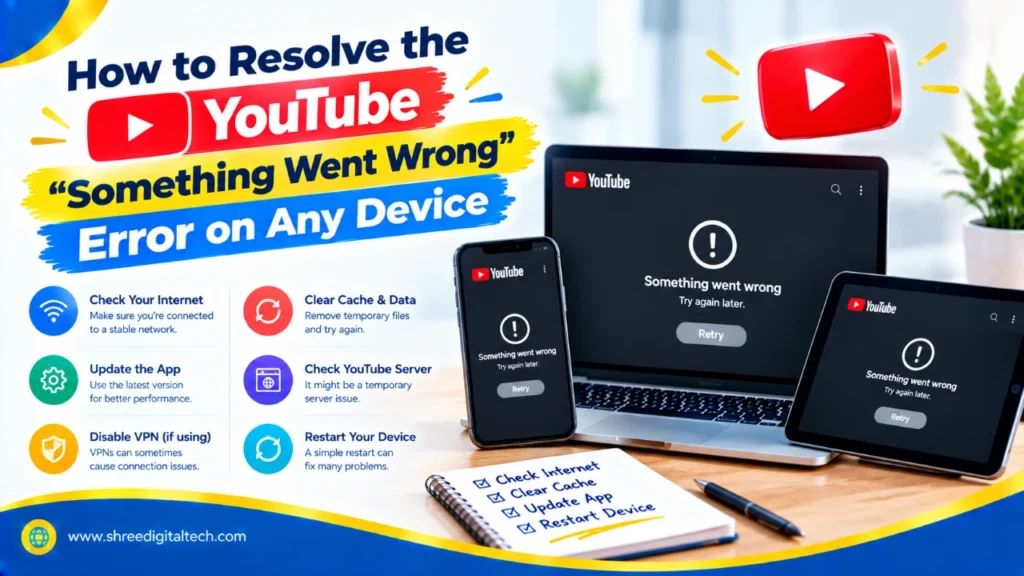
You try to open YouTube to watch a video and you’re met with a blank screen and a short message: “Something went wrong.” Occasionally it will say “Tap to retry.” Sometimes it says YouTube unavailable, please try again later. If YouTube keeps saying something went wrong, you’re not alone. You’ll see this mistake on phones, tablets, laptops and desktops and it’s one of the most common YouTube errors.
The message is vague which makes it more annoying. It doesn’t tell you what’s wrong, The good news is the fix is usually simple. This guide explains the reason behind this problem and provides simple steps to fix it on desktop, Android, and iPhone.
What Does the “Something Went Wrong” Error Mean?
This message means YouTube had an issue loading or playing what you asked for. It can show up when you open the app, when a video is playing, or when you’re trying to do something like sign in or post a comment.
The wording changes a little from device to device:
- On a desktop browser, you may see “An error occurred. Please try again later.”
- In the YouTube app, you may see “YouTube something went wrong tap to retry.”
- Sometimes you may just see something went wrong with a retry button.
All of these point to the same kind of problem: a glitch between your device, your internet, and YouTube’s servers.
Also Read: How to Fix ERR_SSL_PROTOCOL_ERROR in Chrome & Other Browsers (Full Guide)
Why Is My YouTube Not Working? Common Causes
If you are asking, “why is my YouTube not working?”, one of these reasons is most likely behind it:
- Weak or unstable internet. Slow Wi-Fi or poor mobile signal is the number one cause.
- Outdated YouTube app. Old app versions often have bugs that cause the YouTube app something went wrong message.
- Outdated browser. An old browser may not load YouTube properly.
- Corrupted cache. Saved temporary files can break pages and videos.
- Faulty browser extensions. Some add-ons interfere with how YouTube works.
- VPN problems. A VPN can slow your connection or get blocked by the platform.
- Small software glitches. Your phone or computer may just need a restart.
- YouTube server problems. Sometimes the issue is on YouTube’s side, not yours.
First, Check Whether YouTube Is Down
Before trying any fix, first verify that the problem is on YouTube’s side. Servers can be down for maintenance, heavy traffic, or technical faults.
You can check something like Downdetector, which tells you if lots of people are reporting problems at once. If YouTube is down for everyone, there is nothing you can do to fix it. Please wait for a while and try again later.
If YouTube is working for other people, the problem is on your device or network. Try the fixes below.
How to Fix the YouTube Error on Desktop (Windows and Mac)
If YouTube is not working in your browser, try these steps one by one.
- Reload the page. A simple refresh can clear a small glitch. Click the reload icon next to the address bar, or press F5 (Ctrl + R on Windows, Command + R on Mac).
- Check your internet connection. Turn your Wi-Fi off and on again. You can also restart your router. If other websites load slowly too, your internet is the real problem.
- Clear your browser cache. Old cache files can cause a YouTube error. Open your browser settings, find the option to clear browsing data, select cached images and files, and clear them. Then open YouTube again.
- Turn off browser extensions. Ad blockers and other add-ons can sometimes block YouTube from loading. Disable all extensions, then reload YouTube. If it works, turn the extensions back on one at a time to find the one causing trouble.
- Update your browser. An outdated browser can cause playback problems. Open your browser’s “About” section, check for updates, and install the latest version.
- Try a different browser. If YouTube works in another browser, the problem is with your first browser. Resetting its settings may fix it.
- Sign out and sign back in. Click your profile picture on YouTube, choose “Sign out,” and then sign in again. This refreshes your account connection.
- Restart your computer. A restart clears many small system problems. It sounds basic, but it works more often than you would expect.
- Turn off your VPN or change your DNS. If you use a VPN, switch it off and test YouTube again. If that does not help, try switching to a public DNS such as Google DNS (8.8.8.8) or Cloudflare DNS (1.1.1.1). This can fix network problems that block YouTube.
How to Fix the YouTube Error on Android
If you see “YouTube something went wrong tap to retry” on your Android phone, try these steps.
- Force stop the app. Press and hold the YouTube icon, tap App info, and then tap Force stop. Open the app again.
- Turn Airplane mode on and off. Turn it on, wait about 10 seconds, and turn it off. This refreshes your network connection.
- Update YouTube. Open the Play Store, search for YouTube, and tap Update if it is available.
- Restart your phone. Hold the power button and tap Restart.
- Clear the app cache. Go to Settings, open the YouTube app info, tap Storage, and then clear cache.
- Turn off your VPN. Switch it off and test the app again.
- Disable and enable the app. On some phones, you cannot uninstall YouTube. In that case, disable it in App info and then enable it again.
- Reset network settings. Do this as a last step, because it also removes saved Wi-Fi passwords.
How to Fix the YouTube Error on iPhone and iPad
If YouTube keeps saying something went wrong on your iPhone or iPad, follow these steps.
- Close and reopen the app. Swipe up from the bottom of the screen, pause in the middle, and swipe up on the YouTube window. Then open it again.
- Turn Airplane Mode on and off. Wait a few seconds before turning it off.
- Update the YouTube app. Open the App Store, tap your profile picture, and update YouTube if an update is waiting.
- Restart your device. Turn it off, wait ten seconds, and turn it on again.
- Update iOS. Go to Settings, then General, then Software Update.
- Allow mobile data and background refresh. In Settings, open YouTube and make sure both Mobile Data and Background App Refresh are turned on.
- Sign out and sign in again. Tap your profile picture in the app and sign out, then sign back in.
- Delete and reinstall the app. Press and hold the YouTube icon, tap Remove App, and then Delete App. Download it again from the App Store.
- Turn off the VPN. A VPN can block or slow down YouTube.
- Reset network settings. Go to Settings, then General, then Transfer or Reset iPhone, then Reset, and choose Reset Network Settings. Use this as a last step.
Quick Tips to Avoid This Error in the Future
- Keep your YouTube app and browser up to date.
- Use a stable Wi-Fi connection or a strong mobile signal.
- Clear your cache from time to time.
- Avoid too many browser extensions.
- Restart your phone or computer once in a while.
- Do not use beta versions of apps or operating systems if you want fewer problems.
Final Words
The “Something went wrong” message seems scary, but it is unlikely to be a serious problem. Most of the time, it’s fixed by performing a quick restart, an app update or a cache clean-up. Begin with the simple fixes and only proceed to the big ones, like resetting network settings, if necessary.
If none of these works, then the YouTube servers may be down. Wait a bit and try again. With these steps you should be able to fix a YouTube not working problem on any device and get back to your videos.
Ask AI about this article
Get a quick summary or ask follow-up questions.

Akash Yadav
Part of the Shree Digital Tech team, helping businesses in the USA, UK, Canada, Australia, Europe and India grow with SEO, paid media, content and websites.