
You are trying to access a website, but rather than the page loading, your browser blocks you with a red warning screen that says “ERR_SSL_PROTOCOL_ERROR” or “This site can’t provide a secure connection.” It is a frustrating interruption especially when you are doing something important like checking out on a store or reading an article.
The good news is that this error is almost always fixable in a few minutes, whether you’re a regular visitor trying to open a site or a website owner trying to figure out why your own domain is giving this warning to visitors. In this guide, we’ll look at what the error really means, why it happens and exactly how to get rid of it for both users and site owners.
What is ERR_SSL_PROTOCOL_ERROR?
Every time you visit a website with “https://” in front of it, your browser and the website’s server exchange a quick background handshake called an SSL/TLS handshake. During this handshake, both sides agree on an encryption method, and verify that the site’s SSL certificate is valid. This means that any data you send – passwords, card details, personal info – travels in an encrypted, unreadable form.
ERR_SSL_PROTOCOL_ERROR simply means that this handshake has failed. Your browser and the server couldn’t negotiate how to make a secure connection, so your browser is refusing to show the page instead of sending your data over an unprotected link. Think of it as a safety checkpoint; if the checkpoint can’t check things are in order, you can’t go through.
You may get this error on a single website, all websites, or only on certain browsers or devices, and the pattern you see usually points to the cause.
Common Causes of the ERR_SSL_PROTOCOL_ERROR
Before you jump into fixing it, it can be helpful to know what usually causes this error:
- Incorrect system date or time – SSL certificates are time-sensitive. If your device’s clock is off, your browser may think a valid certificate is expired or not yet active.
- Corrupted or outdated browser cache/SSL data – Caching old SSL data on your browser can cause issues with the current certificate being used by the site.
- Outdated browser or operating system – Older software may not support modern encryption ciphers or current TLS versions.
- Antivirus or firewall interference – Certain security software scans HTTPS traffic and can accidentally block or change certificates.
- QUIC protocol conflicts – Chrome’s experimental QUIC feature sometimes conflicts with certain server settings.
- Misconfigured or expired SSL certificate on the website – As a site owner, it could be that the certificate is not matching the domain, it has expired or it hasn’t been installed correctly.
- Mixed content – A page loading some resources over HTTP and others over HTTPS can break the secure connection.
- VPN or browser extensions – Some VPNs and extensions interfere with how encrypted traffic is handled.
How to Fix ERR_SSL_PROTOCOL_ERROR as a Visitor
If you see this error when trying to open someone else’s website, then the problem is most likely with your device or network. Please follow these steps in order.
1. Check Your System’s Date and Time
That’s the most common cause. Look at your device’s date and time settings to ensure that “Set time automatically” is on and that the time zone is correct. A perfectly valid certificate can look expired if a clock is off by even a single day.
2. Clear Your Browser Cache and Cookies
Old cached SSL data can interfere with the current certificate of a site.
- Chrome: Settings → Privacy and security → Clear browsing data → select “Cached images and files” and “Cookies,” then clear.
- Reload the site afterward.
3. Clear the SSL State
On Windows, this is separate from clearing the browser cache: Control Panel → Internet Options → Content tab → Clear SSL State. This forces your system to fetch fresh certificate data instead of reusing stored handshake information.
4. Disable the QUIC Protocol (Chrome)
Type chrome://flags in the address bar, search for “QUIC,” and set it to Disabled. Relaunch Chrome and try the site again.
5. Temporarily Disable Antivirus or Firewall
Some antivirus software with features like “HTTPS scanning” or “SSL inspection” may interfere with secure connections. Turn it off for a second, just to see what happens. If the site does load then make an exception for that antivirus feature, not turn it off permanently.
6. Disable VPN and Browser Extensions
If you are using a VPN, please turn it off and reload the page. Also, try opening the site in an Incognito/Private window – this will disable most extensions and can quickly tell you if one of them is the cause.
7. Upgrade Your Browser and Operating System
Go to your browser’s “About” or “Help” section to check for updates, and check your operating system’s update settings too. Older software often does not support the current versions of TLS.
8. Try a Different Browser or Network
If the error only happens on one browser, the problem is local to that browser’s settings. If it happens on every browser but goes away on mobile data instead of Wi-Fi, your router or ISP-level DNS might be involved.
How to Fix ERR_SSL_PROTOCOL_ERROR as a Website Owner
If users are reporting this error on your own site, consider it a server configuration issue and go through these checks.
1. Verify Your SSL Certificate
Try using a free SSL checker tool:
- The certificate hasn’t expired
- It’s issued for the exact domain (including www vs. non-www)
- It was issued by a trusted Certificate Authority (CA)
- The full certificate chain (including intermediate certificates) is installed correctly
2. Reinstall or Renew the Certificate
If the certificate is expired, mismatched or incomplete, you can reissue it through your hosting provider or certificate authority and then reinstall it properly on your server.
3. Check for Mixed Content
Ensure that all resources on your page – images, scripts, stylesheets, embedded videos – are served over HTTPS, not HTTP. It only takes one HTTP resource on an HTTPS page to cause handshaking warnings in the browser.
4. Check SSL/TLS Configuration of Your Server
Browsers do not trust old protocols like SSLv3 or TLS 1.0 anymore these days. Set up your server to support modern TLS versions (TLS 1.2 and 1.3) and turn off outdated, insecure protocols and ciphers.
5. Look for Recent Server or DNS Changes
This can cause temporary mismatches if you have recently migrated hosting, changed DNS records, or reinstalled a certificate after DNS propagation. Check your server logs for handshake or certificate errors to see what changed exactly.
6. Restart Your Web Server
After making any SSL changes, restart your web server (Apache, Nginx, etc.) so the new configuration can be properly applied.
Is ERR_SSL_PROTOCOL_ERROR the Same on iPhone and Android?
Yes, the root cause is the same – a failed SSL/TLS handshake – but the fix seems a bit different on mobile:
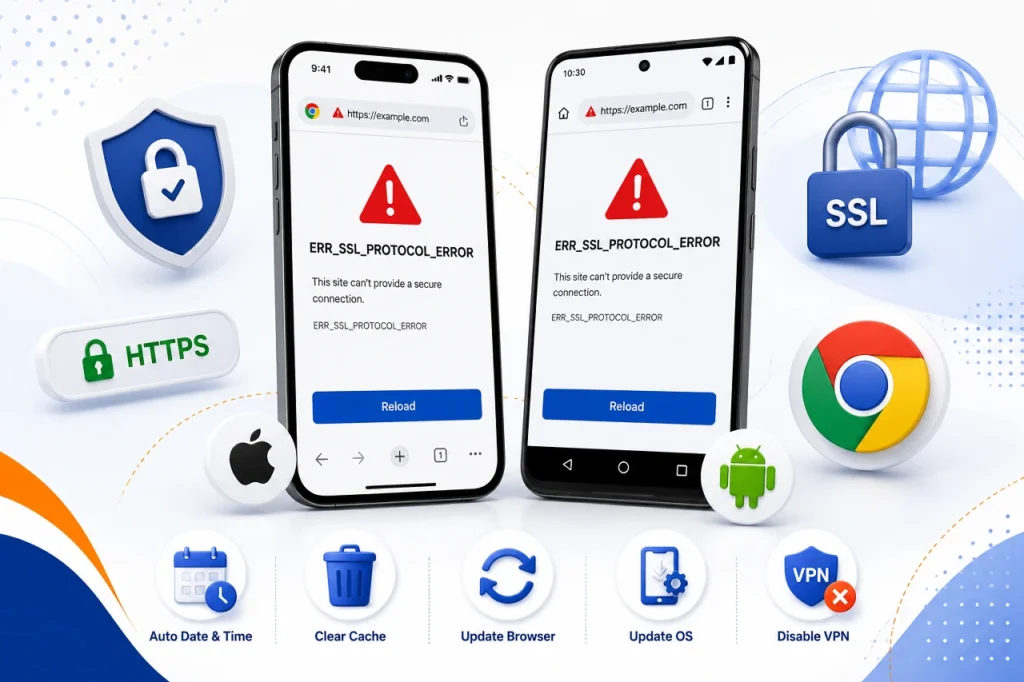
- Make sure your phone’s date and time are set to update automatically.
- In the app settings, clear your mobile browser’s cache and site data.
- Update your browser app and phone OS to the latest version.
- Disable any VPN app and try again.
- If it happens on one browser but not another, the issue is app-specific rather than network-wide.
Should You Ignore the Warning?
Chrome and other browsers might have a “Advanced” option to go on anyway. This is not the same as ERR_SSL_PROTOCOL_ERROR in most cases – this specific error usually prevents the page from loading at all and without allowing you to bypass, because the handshake itself has failed, not just the certificate warning. If you do get a bypass option on a related SSL warning, only do that if you’re sure the site is legit and trustworthy, because bypassing the warning means your connection isn’t verified as secure.
A Quick Recap
| If you’re a visitor | If you’re a site owner |
| Fix system date/time | Check certificate validity and match |
| Clear cache & SSL state | Fix mixed content |
| Disable QUIC | Update TLS/cipher configuration |
| Test without antivirus/VPN | Review recent server/DNS changes |
| Update browser & OS | Restart the web server |
Frequently Asked Questions
1. Why does only one website give me ERR_SSL_PROTOCOL_ERROR?
This usually means there is some issue with the SSL certificate for that particular site. It could be expired, it could not match the domain, or it could be misconfigured on their server. If all other sites are loading fine, then the problem is probably on the website’s end and not yours.
2. How do I permanently fix the protocol error?
Set your system date/time to automatic sync. Update your browser and OS. Clear your browser cache periodically. For site owners, set reminders to renew SSL certificates prior to expiration and keep server TLS settings current.
3. Could antivirus software be the cause?
Yes. HTTPS/SSL scanning is a feature some security suites have that can interfere with certificate verification. A simple way to check this is to temporarily disable the antivirus and test.
4. Does clearing my cache delete my saved passwords?
No, not by default. If you opt to clear your browser’s data settings, deleting “cookies” and “clearing cached images and files” won’t remove saved passwords.
5. Is this error the same as ERR_SSL_VERSION_OR_CIPHER_MISMATCH?
They’re related but not the same. The cipher mismatch error is more specific to represent the case that the browser and server could not agree on a supported encryption cipher or SSL/TLS version. The ERR_SSL_PROTOCOL_ERROR is more general handshake failure. Many of the same fixes apply to both, including updating your browser, clearing SSL state and checking server configuration.
If the problem persists after following all of the above, the safest option is to directly contact your hosting provider or the website owner, as the problem is most likely a server-side certificate configuration issue that only they can fix.