An HTTP 401 Unauthorized Error can appear when you try to open a website, sign in to your account, or visit a page that needs permission. Instead of showing the page, the website displays an error message. This can be annoying, especially when you have entered the correct login details.
The good news is that you can often fix a 401 error with a few simple steps. The problem may happen because of incorrect login details, an expired login session, old browser data, or a problem with the website’s settings.
In this guide, you will learn what is 401 error, why it happens, and five proven ways to fix it. These steps can help you solve the http 401 error while browsing a website or managing your own site.
What Is a 401 Unauthorized Error?
A 401 Unauthorized Error is an HTTP status message that means a website cannot check your login details. In simple words, the website needs to confirm who you are before letting you open a page, but your request does not include the correct login information.
The status code 401 is one of the HTTP codes that websites and servers use to explain what happens when you try to open a page. When a server returns a 401 response code, it usually means you need to sign in or enter the correct login details before you can continue.
You may see this error shown in different ways, such as:
- 401 Unauthorized
- HTTP Error 401
- 401 Authorization Required
- Error 401 Unauthorized
- HTTP 401 Access Denied
Although the words may be different, these messages usually point to a login problem. The exact reason depends on the website, your browser, and the server settings.
A 401 error is also different from a 403 Forbidden error. A 401 response usually means the server needs to check your login details, while a 403 response means the server does not allow access to the page.
Also Read: How to Resolve the YouTube “Something Went Wrong” Error on Any Device
Why Does the HTTP 401 Error Occur?
Before trying the fixes, it helps to understand what may be causing the problem. The http error 401 can appear for several reasons. Finding the cause can help you choose the right fix.
Here are some common reasons:
- Wrong login details: You may have entered the wrong username or password.
- Expired login session: Your login session may have ended, so the website needs you to sign in again.
- Old browser data: Saved cookies or temporary files may contain old login information.
- Wrong website address: You may be opening an old link or a page that needs a different login.
- Website security settings: A security tool or server setting may block a valid request.
- Expired API token: If you use an app or API, your access token may have expired or stopped working.
The 401 http code tells you that the website needs to check your login details or has not accepted them, but it does not always explain the exact reason. You may need to try a few fixes to find the cause.
How to Fix HTTP 401 Unauthorized Error: 5 Proven Methods
Try the following methods one by one. Start with the simple fixes before changing any website or server settings.
1. Check the Website URL
The first step is to check whether you are opening the correct website address. A small typing mistake or an old saved link may take you to a page that needs different login details.
Follow these steps:
- Check the website address in your browser’s address bar.
- Make sure the website name and page address are correct.
- If you opened the page through an old saved link, visit the website’s homepage and find the page again.
- If you clicked a link on another page, try opening the page directly from the website’s main menu.
- Check whether you need to sign in before opening the page.
For example, an old link to a private account page may stop working after the website changes its page address. Opening the correct page may fix the problem.
After checking the address, reload the page. If the 401 error still appears, try the next method.
2. Clear Your Browser Cache and Cookies
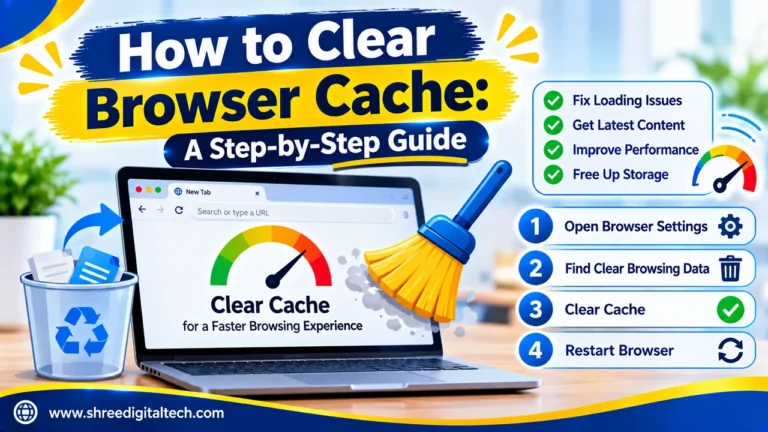
Your browser saves temporary website files and cookies to help pages load faster and keep you signed in. However, this saved information can sometimes become old and cause login problems.
Clearing your browser cache and cookies can remove old data that may be causing the 401 unauthorized error.
Here is how to do it in Google Chrome:
- Open Chrome on your computer.
- Click the three-dot menu in the top-right corner.
- Select Settings.
- Open Privacy and security.
- Click Delete browsing data or Clear browsing data, depending on your browser version.
- Select Cookies and other site data and Cached images and files.
- Click Delete data or Clear data.
Once the process is complete, open the website again and sign in.
Keep in mind that clearing cookies may sign you out of other websites. You may need to enter your login details again.
You can also open the website in an Incognito window or another browser. If the page works there, your usual browser’s saved data or settings may be causing the problem.
Also Read: How to Fix ERR_SSL_PROTOCOL_ERROR in Chrome & Other Browsers (Full Guide)
3. Log In Again With the Correct Details
Sometimes, the problem is related to your login session rather than the website itself. Your session may have ended, your password may have changed, or the server may no longer accept your saved login details.
To check this, follow these steps:
- Open the website’s main login page.
- Sign out if you are still signed in.
- Enter your username or email address and password again.
- Check that Caps Lock is off and that there are no extra spaces in your details.
- If you have forgotten your password, use the website’s password reset option.
- After signing in, open the page that showed the error earlier.
If the website uses two-step login, complete that step as well.
For apps that use API keys or access tokens, check whether the token is still working. An expired or wrong token can cause the same error when an app sends a request to a server. If needed, create a new token through the official account settings and update the app safely.
If your login details are correct but the error continues, the problem may be related to the website’s security settings or server.
4. Clear Your DNS Cache
DNS helps your computer find the correct server when you enter a website address. Sometimes, old DNS information can cause connection problems, especially after a website moves to a new server.
Clearing the DNS cache removes saved DNS details so your computer can find the website’s address again.
For Windows users:
- Open the Start menu.
- Search for Command Prompt.
- Open it.
- Enter the following command:
ipconfig /flushdns - Press Enter and wait for the confirmation message.
- Open your browser and try visiting the website again.
For macOS users:
- Open Finder.
- Go to Applications, then Utilities.
- Open Terminal.
- Enter the DNS cache-clearing command for your macOS version.
- Press Enter and enter your Mac password if asked.
DNS problems are not the most common cause of a 401 error, so this method may not work every time. However, it is worth trying if the other simple fixes have failed, especially after a website moves to a new server or its DNS settings change.
If the same status code 401 still appears, try the final method.
5. Check Website Security Settings and Plugins
If you manage a website and visitors are getting a 401 error, the problem may be related to the server settings, login protection, or a security plugin.
A security plugin may block a request if it finds unusual login activity. A recent plugin update or a problem between two plugins can also affect login checks.
You can try these steps:
- Sign in to your website’s dashboard, if you can open it.
- Check recently added or updated plugins.
- See whether a security plugin is blocking valid login attempts.
- Turn off the suspected plugin for a short time and test the page again.
- If the error goes away, turn the plugins on one at a time to find the cause.
Do not leave website security tools turned off. Make a backup before changing plugins or other important settings.
If you manage the server, check the login rules in your .htaccess file or Nginx settings. Wrong password protection settings or missing login files can stop valid requests from opening a page.
You can also check the WWW-Authenticate response header using your browser’s developer tools. This header can show which login method the server expects.
If the problem involves server settings, API access, or login details sent between an app and a server, ask your hosting provider or developer to check the settings.
If you are only visiting someone else’s website, you cannot change its server settings. In that case, contact the website owner and explain when the error appears.
How to Prevent the 401 Unauthorized Error in the Future
You may not be able to stop every 401 error, but a few simple habits can lower the chances of seeing it again.
- Keep your login details updated and use the correct password.
- Sign in again when your session ends.
- Keep your browser updated to avoid problems caused by old versions.
- Avoid using old saved links to open private pages.
- Keep your website plugins and security tools updated.
- Check API tokens regularly if you use them to connect apps.
- Check server login settings after making website changes.
If you manage a website, test its login pages after changing plugins, passwords, or server settings. This can help you find login problems before they affect visitors.
Conclusion
The HTTP 401 Unauthorized Error usually means that a website cannot check your login details. It may happen because of a wrong website address, an expired login session, old browser cookies, or a problem with the website’s security settings.
Start by checking the website address, clearing your browser cache and cookies, and signing in again. If these steps do not work, try clearing your DNS cache or checking your website’s security settings.
The right fix depends on the cause of the error. If none of these five methods works, contact the website owner or hosting provider for help. They can check the server settings and login records to find the problem.
With these simple steps, you can fix a 401 error more easily and get back to using the website.
Ask AI about this article
Get a quick summary or ask follow-up questions.

Akash Yadav
Part of the Shree Digital Tech team, helping businesses in the USA, UK, Canada, Australia, Europe and India grow with SEO, paid media, content and websites.