In this article
- Why is Website Speed Important?
- 1. First Test Your Website Speed
- 2. Select a Light and Simple Theme
- 3. Resize and Compress Your Images
- 4. Enable Lazy Loading
- 5. Use Caching Plugin
- 6. Optimise Your Database in WordPress
- 7. Use a Content Delivery Network (CDN)
- 8. Choose a Good Hosting Provider
- 9. Minify CSS and JavaScript Files
- 10. Enable GZIP Compression
- 11. Delete Unused Plugins and Themes
- 12. Continue to Check Your Site Speed
- Summary
- Frequently Asked Questions
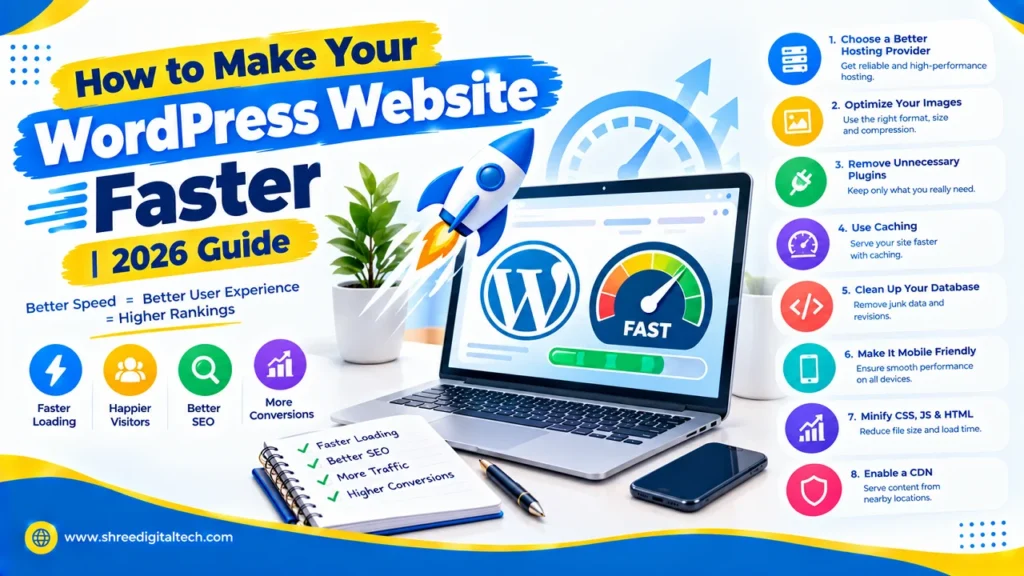
A slow website can hurt you in many ways. If it takes too long to open, people leave your site. Google also likes faster sites, so slower sites are likely to rank lower in search results. Don’t worry if your WordPress site seems slow. You can fix it with a few easy steps. In this guide, you’ll find easy ways to speed up your WordPress site in 2026.
Why is Website Speed Important?
A fast loading site keeps visitors around longer and makes for a better visit. They click on more pages and are more likely to buy or fill out a form. But if your site is slow, people get bored and leave immediately. This is called a “bounce” and too many bounces can harm your search ranking.
Search engines like Google pay attention to how fast your pages load. They also check things like how fast the main content loads and whether the page moves around while it’s loading, which users find annoying. People will enjoy your site more if it loads quickly, and it will also help your SEO.
1. First Test Your Website Speed
You need to know how slow your site really is before you fix anything. Test your site speed using free tools like Google PageSpeed Insights or GTmetrix. These tools also tell you what is slowing your site down so you know where to start.
2. Select a Light and Simple Theme
A lot of WordPress themes come with features that you don’t even use. The themes here are heavy and can make your site slow. Choose a light theme with only what you need. Some of the popular themes are GeneratePress, Astra and Neve. They load fast and still look good.
Also Read: Essential WordPress Plugins Every Website Needs
3. Resize and Compress Your Images
One of the number one reasons websites are slow is big images. Always resize your images before uploading. Plugins such as Smush, ShortPixel or Imagify can do this automatically. Also try to use modern image types like WebP which are smaller in file size but still look sharp.
Don’t upload a huge image if you don’t need to. If your blog displays images at 800 pixels wide, don’t upload a 2000 pixel-wide image. This just takes up space and slows down your page.
4. Enable Lazy Loading
Lazy loading means the images will only load as the user scrolls down to see them. This speeds up the initial load of your page, because it is not trying to load all of the images at the same time. This is already supported by many themes and plugins. You can also enable it using a setting built into WordPress itself.
5. Use Caching Plugin
Caching is a copy of your page ready to go. Rather than rebuilding the page over and over again for each visitor, your site simply serves the cached copy. It is much faster. Some good caching plugins are WP Super Cache, WP Rocket. Caching also takes the strain off your server, which is handy if you get a lot of people visiting at once.
6. Optimise Your Database in WordPress
As time goes by, your WordPress database accumulates junk such as old drafts, spam comments, and unnecessary data. This will make your database slower. Clean it up with a plugin like WP-Optimize. You can even have it automatically cleaned on a regular schedule.
7. Use a Content Delivery Network (CDN)
A CDN is a network of servers around the world that store copies of your site. When someone visits your site, they get the copy from the server that is closest to them. This makes your site faster, no matter where your visitor is located. One simple CDN to begin with is Cloudflare.
Also Read: What Makes WordPress the Best CMS for Business Websites
8. Choose a Good Hosting Provider
Your hosting makes a big difference in site speed. Cheap shared hosting is generally slow, particularly during traffic spikes. If your budget allows, pick a good host built for speed with modern tools like caching and fast servers.
9. Minify CSS and JavaScript Files
Minifying is the process of removing unnecessary code and extra spaces from your files. This reduces file size and helps your site load faster. With the help of plugins like Autoptimize or WP Rocket, you can do this job for you without any technical skill.
10. Enable GZIP Compression
GZIP compression reduces the size of your website files before sending them to the visitor’s browser. Larger files take longer to load. Most of the good hosting companies offer this already. If it isn’t on already, ask your host to switch it on.
11. Delete Unused Plugins and Themes
Each plugin you add contributes some extra code to your site. If you’re not running a plugin, delete it. Unused themes are the same. This makes your site lighter and safer and faster. You can get errors and things can slow down when you have too many plugins.
12. Continue to Check Your Site Speed
Speeding up doesn’t happen just once. Keep testing your site every few weeks with the same tools mentioned above. It helps you notice new problems, such as a new plugin that is slowing things down.
Summary
Speeding up your WordPress site doesn’t have to be hard. Begin with small steps like image compression, enabling caching and choosing a light theme. Then tackle bigger changes like better hosting and CDN. These changes add up, over time, to a website that loads quickly, keeps visitors happy and ranks better in Google.
Frequently Asked Questions
Q1. Why is my WordPress website loading slowly?
Common reasons include large image files, poor hosting, too many plugins, lack of caching and a messy database.
Q2. What’s the quickest way to speed up WordPress?
The fastest and most simple way to boost your speed is by turning on cache and by compressing your images.
Q3. Do I have to pay for speed tools?
No. There are many good tools that are free to use like Google PageSpeed Insights, GTmetrix and simple caching plugins.
Q4. How often should I check website speed?
It’s a good idea to check your speed every few weeks, or immediately after you add a new plugin or theme.
Q5. Does SEO actually depend on a website’s speed?
Yes. Google considers how fast your site loads. Faster sites often rank better and hold visitors longer.
Q 6. Does a small website need a CDN?
This is not always necessary for very small sites, but it can be a big help if you have visitors from different countries.
Ask AI about this article
Get a quick summary or ask follow-up questions.

Akash Yadav
Part of the Shree Digital Tech team, helping businesses in the USA, UK, Canada, Australia, Europe and India grow with SEO, paid media, content and websites.