In this article
- What Is the DNS_PROBE_FINISHED_NXDOMAIN Error?
- DNS_PROBE_FINISHED_NXDOMAIN Meaning
- What Causes the NXDOMAIN Error?
- Quick Fixes to Try First
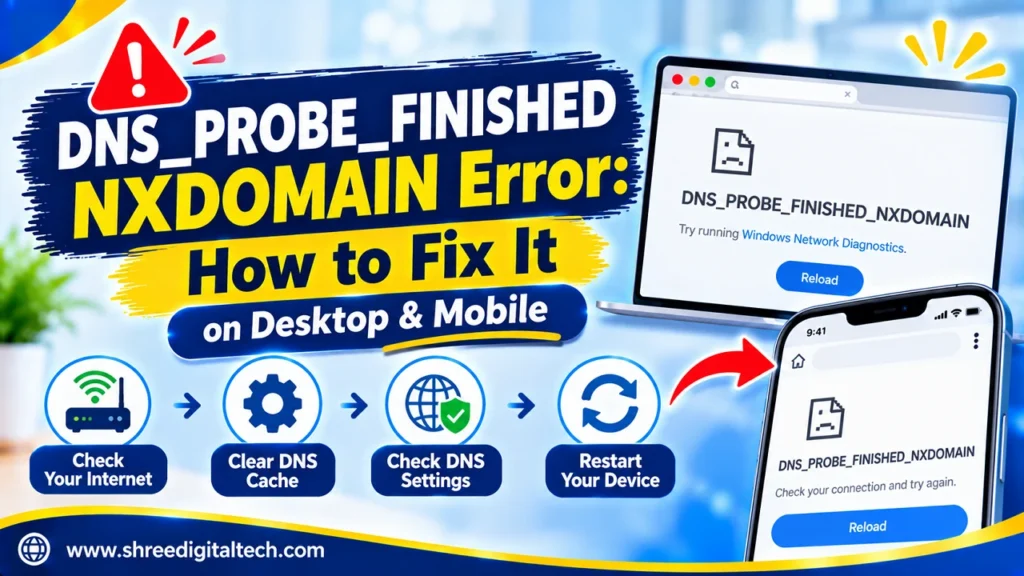
- How to Fix DNS_PROBE_FINISHED_NXDOMAIN on Desktop
- How to Fix DNS_PROBE_FINISHED_NXDOMAIN on Mobile
- iPhone and iPad
- Other Mobile Tips
- What the Error Looks Like in Different Browsers
- If You Own the Website
- How to Avoid This Error in the Future
- Final Words
- FAQs
You type a URL and hit Enter. But instead of the website you get “This site can’t be reached” and some weird code below it. DNS_PROBE_FINISHED_NXDOMAIN.
No problem. This is one of the most common errors on the internet and it’s usually easy to fix. This guide will explain what it means, why it happens and how to fix it on Windows, Mac, Linux, Android and iPhone.
What Is the DNS_PROBE_FINISHED_NXDOMAIN Error?
The dns probe finished nxdomain error occurs when your browser is unable to find the address of the website you want to access.
Every website has a name, like example.com, and a number address called an IP address . The Domain Name System ( DNS ) is like a phone book for the internet . It takes the name you type and makes it the number your device needs.
If DNS can’t find a match, the browser will show this message. It is seen by many people as:
- “This site can’t be reached. Could not resolve [website]’s server IP address. DNS_PROBE_FINISHED_NXDOMAIN”
- “Verify that there is a typo in social.xbox.com. DNS_PROBE_FINISHED_NXDOMAIN”
The message is the same on all websites. “beeg com’s server IP address could not be found. A line like “DNS_PROBE_FINISHED_NXDOMAIN” just means Chrome couldn’t find that domain. That doesn’t mean your device is broken or infected.
Also Read: How to Clear Browser Cache: A Step-by-Step Guide
DNS_PROBE_FINISHED_NXDOMAIN Meaning
If you are wondering what dns probe finished nxdomain mean in plain words, here is the breakdown:
- DNS = Domain Name System, the internet’s phone book.
- PROBE = a test or lookup request your browser sends.
- FINISHED = the lookup is complete.
- NXDOMAIN = “Non-Existent Domain,” meaning no record was found.
So the full dns_probe_finished_nxdomain meaning is: “The browser asked for the website’s address, and DNS replied that it could not find one.”
This nxdomain error is not a virus. It is a lookup problem.
What Causes the NXDOMAIN Error?
There are several common reasons:
- A typing mistake in the website address.
- A weak or broken internet connection.
- Old or damaged DNS cache stored on your device.
- Wrong DNS settings, or slow DNS servers from your internet provider.
- A VPN, antivirus, or firewall blocking the lookup.
- A wrong entry in the hosts file on your computer.
- An expired or unregistered domain. If the website owner forgot to renew, the name may no longer exist.
- Recent DNS changes that have not spread across the internet yet. This can take up to 48 hours.
Quick Fixes to Try First
Try these simple steps before anything advanced:
- Check the spelling. Look carefully at the website address. One wrong letter can cause the error.
- Open a different website. If other sites load, your internet is fine and the problem is with one domain or your DNS.
- Try another browser. If the site opens in Firefox, Edge, or Safari, the problem is in your first browser.
- Try another device or network. Open the site on your phone using mobile data. If it works, your Wi-Fi or computer settings are the cause.
- Restart your device and router. Unplug the router for about 30 seconds, then plug it back in.
Also Read: HTTP 304 Not Modified Status Code: A Complete Guide
How to Fix DNS_PROBE_FINISHED_NXDOMAIN on Desktop
1. Flush the DNS Cache
Your computer saves website addresses so pages load faster. If that saved data is old, it can cause errors. Flushing removes it.
Windows:
- Click Start, type Command Prompt, right-click it, and choose Run as administrator.
- Type ipconfig /flushdns and press Enter.
- You should see a message that the DNS Resolver Cache was flushed.
Mac:
- Open Terminal.
- Type sudo dscacheutil -flushcache; sudo killall -HUP mDNSResponder and press Return.
- Enter your password if asked.
Linux:
Open Terminal and run sudo systemd-resolve –flush-caches. Some systems use a different service, such as nscd or dnsmasq, so the command may differ.
2. Release and Renew Your IP Address
Windows: In Command Prompt (as administrator), run these one by one:
ipconfig /release
ipconfig /renew
If the problem stays, you can also run netsh winsock reset and restart your computer.
Mac: Go to System Settings (or System Preferences) → Network → select your connection → Details/Advanced → TCP/IP → click Renew DHCP Lease.
3. Restart the DNS Client Service (Windows)
- Press Windows + R, type services.msc, and press Enter.
- Find DNS Client, right-click it, and choose Restart.
If Restart is greyed out, open Command Prompt as administrator and run:
net stop dnscache
net start dnscache
4. Change Your DNS Server
Your internet provider’s DNS servers can be slow or unreliable. A public DNS service is often a better choice.
| Provider | Primary DNS | Secondary DNS |
| Google DNS | 8.8.8.8 | 8.8.4.4 |
| Cloudflare DNS | 1.1.1.1 | 1.0.0.1 |
| OpenDNS | 208.67.222.222 | 208.67.220.220 |
Windows:
- Open Control Panel → Network and Sharing Center → Change adapter settings.
- Right-click your Wi-Fi or Ethernet connection and click Properties.
- Select Internet Protocol Version 4 (TCP/IPv4) and click Properties.
- Choose Use the following DNS server addresses and enter the numbers above.
- Click OK and restart your browser.
Mac: Go to System Settings → Network → your connection → Details/Advanced → DNS tab. Click + and add the new addresses.
Tip: If you already use a public DNS and still see the error, try switching back to your provider’s default DNS. Sometimes that fixes it.
Also Read: ERR_CONNECTION_REFUSED: Why It Happens and How to Fix It
5. Reset Chrome Flags
Experimental Chrome settings can sometimes cause problems. Type chrome://flags in the address bar, click Reset all, and restart Chrome.
6. Turn Off VPN, Antivirus, or Firewall for a Moment
Security tools can block DNS lookups by mistake. Turn them off briefly and test the website. If it loads, change that tool’s settings. Turn protection back on right after testing.
7. Check the Hosts File
The hosts file can force a website name to point somewhere else. If your site is listed there by mistake, the browser will fail.
- Windows: Open Notepad as administrator, go to File → Open, and browse to C:\Windows\System32\drivers\etc\. Change the file filter to All Files and open hosts.
- Mac/Linux: Open Terminal and run sudo nano /etc/hosts.
Look for the domain you cannot open. If you find it, delete the line or add # at the start. Make a backup first.
How to Fix DNS_PROBE_FINISHED_NXDOMAIN on Mobile
Many people search for the android dns_probe_finished_nxdomain problem, because Chrome on phones shows it often. The dns_probe_finished_nxdomain android fixes below usually solve it:
- Restart your phone. Hold the power button and tap Restart.
- Update Chrome. Open Google Play Store → your profile icon → Manage apps and device → update Chrome.
- Clear Chrome data. Open Chrome → menu → History → Clear browsing data. Select browsing history and cached images and files, then clear.
- Change DNS (Wi-Fi). Go to Settings → Network & Internet → Internet → press and hold your Wi-Fi → Modify → Advanced options. Set DNS 1 to 8.8.8.8 and DNS 2 to 8.8.4.4.
- Use Private DNS. Go to Settings → Connections → More connection settings → Private DNS. Choose “Private DNS provider hostname” and enter dns.google (or 1dot1dot1dot1.cloudflare-dns.com for Cloudflare). Menu names differ by phone brand.
- Update Android. Go to Settings → System → System update.
- Reset network settings. Go to Settings → General management → Reset → Reset Wi-Fi, mobile & Bluetooth. This removes saved Wi-Fi passwords, so keep them handy.
iPhone and iPad
- Restart your iPhone.
- Toggle Airplane Mode on and off to refresh the connection.
- Clear Safari data. Settings → Safari → Clear History and Website Data.
- Change DNS. Settings → Wi-Fi → tap the “i” next to your network → Configure DNS → Manual. Remove old servers and add 8.8.8.8 and 8.8.4.4. Tap Save.
- Reset network settings. Settings → General → Transfer or Reset iPhone → Reset → Reset Network Settings.
- Update iOS. Settings → General → Software Update.
Other Mobile Tips
- Switch between Wi-Fi and mobile data. If the site opens on one but not the other, the problem is your network.
- Turn off any VPN or firewall app for a test.
- Forget your Wi-Fi network and connect again.
What the Error Looks Like in Different Browsers
The wording changes, but the problem is the same:
- Chrome: “This site can’t be reached” with the code DNS_PROBE_FINISHED_NXDOMAIN.
- Firefox: “Hmm. We’re having trouble finding that site.”
- Edge: “Hmmm… can’t reach this page.”
- Safari: “Safari can’t find the server.”
If You Own the Website
When your own site shows this error, the cause may be on the website side:
- Missing DNS records. Your domain needs an A record (pointing to your server’s IP) or a CNAME record.
- Wrong nameservers. Check that your domain registrar points to the right DNS provider or host.
- Expired domain. Renew it and the site should return.
- DNS propagation. After changes, wait up to 48 hours.
- DNSSEC problems. A wrong DNSSEC setup can make lookups fail.
- WordPress settings. Go to Settings → Permalinks and click Save Changes. Also check plugin or theme conflicts, and the .htaccess file.
Tools like DNSChecker.org show whether your DNS records have spread worldwide. You can also run nslookup yourdomain.com or dig yourdomain.com and look for “NXDOMAIN” in the result. If nothing works, contact your hosting provider.
How to Avoid This Error in the Future
- Use a reliable public DNS like Google or Cloudflare.
- Keep the same DNS settings on all your devices.
- Avoid poor-quality free VPN and antivirus tools.
- Clear your browser cache once in a while.
- If you own a website, turn on auto-renewal for your domain.
Final Words
The DNS_PROBE_FINISHED_NXDOMAIN error sounds scary, but it simply means that your browser could not locate the address of the website. Start with simple steps like checking the spelling, restarting your device, and flushing your DNS cache. Then Change your DNS server, Check your VPN or antivirus and Review the hosts file. Update Chrome on mobile, clear Chrome data and change DNS. Follow the steps one by one and the site should load again.
FAQs
1. Does this message mean that my Internet is down?
Sometimes no. If other sites open, your internet is working. The problem is DNS or that one domain.
2. Is it a virus?
No. It’s a DNS lookup problem, not malware.
3. Is my internet provider the cause?
Maybe? If the DNS of your provider is slow or down, then switching to Google or Cloudflare DNS often helps.
4. Why do I see this error on only one website?
The domain for the site might have expired, been entered incorrectly or have incorrect DNS settings. Maybe you’ll have to wait for the owner to fix it if it’s not your site.
Ask AI about this article
Get a quick summary or ask follow-up questions.

Akash Yadav
Part of the Shree Digital Tech team, helping businesses in the USA, UK, Canada, Australia, Europe and India grow with SEO, paid media, content and websites.