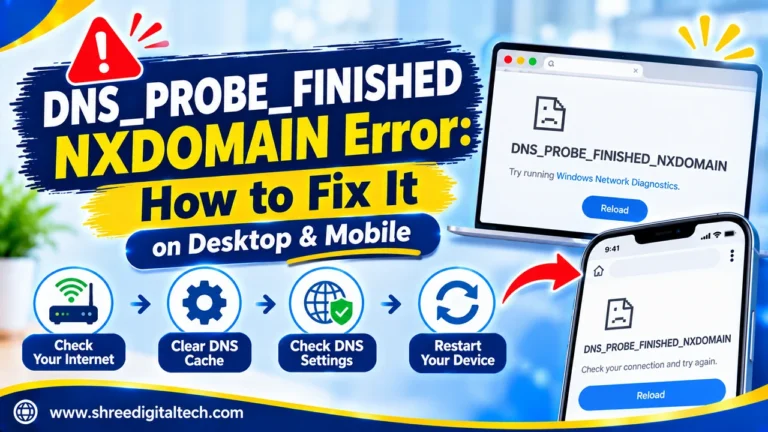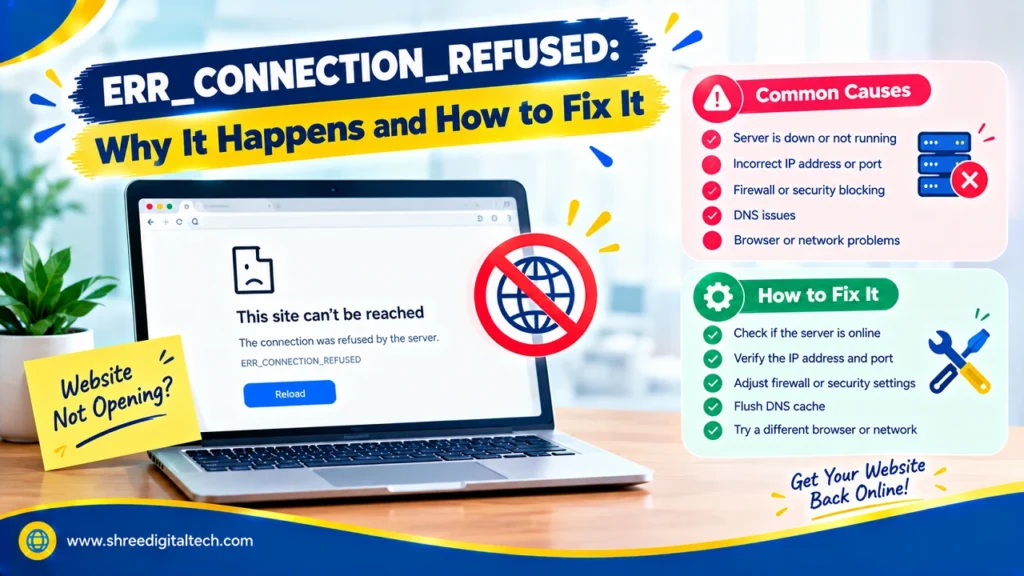
You open a website in Chrome and it says “This site can’t be reached. Below it reads a small line of text: ERR_CONNECTION_REFUSED. It looks scary, but most of the time it only takes a few minutes to fix.
When this happens, many people look for chrome connection refused or connection refused chrome. In this guide, we explain what the error means, why it appears, and how to fix it step-by-step.
What Does ERR_CONNECTION_REFUSED Mean?
When you type a web address, Chrome asks the website’s server to open a connection. ERR_CONNECTION_REFUSED means that request was turned down. Chrome knocked on the door, and the door did not open.
This is different from a timeout. In a timeout, nobody answers at all. With a refusal, someone replied “no.” That “something” can be the website’s server, a firewall, a proxy, or a setting on your own device.
You may see different wording in different browsers:
- Chrome: “This site can’t be reached”
- Firefox: “Unable to connect”
- Edge: “Hmmm… can’t reach this page”
- Safari: “Safari can’t connect to the server”
Also Read: How to Fix the 503 Service Unavailable Error | 2026 Guide
Why Does the Error Happen?
The error can come from your side or from the website’s side.
Problems on your side:
- Old or corrupted browser cache and cookies
- Wrong proxy configuration
- A VPN that’s not behaving properly
- Antivirus or firewall software blocking the website
- An old DNS cache pointing to the wrong address
- A Chrome extension interfering with the connection
- A router issue or weak internet connection
- A corrupted Chrome installation
- A modified “hosts” file on your computer
Problems on the website’s side:
- Web server is no longer working
- The server is overloaded
- Your IP address has been blocked by the server’s firewall
- The site moved to a new server, but the DNS has not updated yet
- A busted SSL certificate setup
How to Fix ERR_CONNECTION_REFUSED
Start with the easy fixes first. Test the website again after each step.
1. Check if the website is down for everyone
Try a different website. If other sites open then your internet is fine. Check the website you want with a tool like Down For Everyone Or Just Me. If it’s down for everyone, you can just wait for the owner to fix it.
2. Restart your router and computer
Switch off your router, wait for about 30 seconds, and switch it on again. Also, restart your computer. This resolves minor network glitches.
3. Clear your browser cache and cookies
Old saved data can cause connection problems. In Chrome, press Ctrl + Shift + Delete (or Cmd + Shift + Delete on Mac). Choose “All time,” tick cached files and cookies, then clear the data. Close Chrome fully and open it again.
Tip: Open the site in an Incognito window first. If it loads there, the cache or an extension is the likely cause.
4. Turn off proxy settings and VPN
A proxy or VPN can send your traffic through a broken route. Switch off your VPN and test again. Then open Chrome Settings > System > Open your computer’s proxy settings and turn off any proxy you do not need.
5. Pause your firewall or antivirus for a moment
Security tools sometimes incorrectly block safe websites. Stop them for a moment And try the site . If it works, add the site to your allow list and turn your protection back on. Don’t ever leave it off.
Also Read: How to Fix the “This Site Can’t Be Reached” Error: 5 Easy Ways
6. Flush your DNS cache
Your computer saves website addresses to load pages faster. If a saved address is old, the connection can fail.
- Windows: open Command Prompt and run ipconfig /flushdns
- Mac: open Terminal and run sudo dscacheutil -flushcache; sudo killall -HUP mDNSResponder
7. Change your DNS server
Your internet provider’s DNS may be slow or having problems. Try a public one:
- Google: 8.8.8.8 and 8.8.4.4
- Cloudflare: 1.1.1.1 and 1.0.0.1
8. Disable Chrome extensions
Go to More tools > Extensions and turn them off one by one. When the site loads, you have found the extension that causes the problem. Ad blockers and privacy tools are common causes.
9. Check the hosts file and reinstall Chrome
If nothing works, look at your computer’s “hosts” file. One wrong entry can send a web site to an invalid address. Lastly, Uninstall Chrome and Download and install the latest version from the official Chrome website.
When Videos or Embedded Players Say “Refused to Connect”
Sometimes the error does not appear on the whole page. You may see a black box inside the page with a message like megacloud.blog refused to connect., embedsports.top refused to connect., or cloudnestra.com refused to connect.
This happens when a page loads content from another website, such as a video player. If that other website rejects the request, Chrome shows a simple refused to connect. message in place of the player. You might also see a message like goodstream.cc is blocked. This usually means the other site does not allow its content to be shown inside that page, or something on your device is stopping it.
The cause is often outside your control, since the player’s own server may be down or may refuse to be embedded. Still, you can try these checks:
- Reload the page and try again in a few minutes
- Disable ad blockers and privacy extensions for that page
- Turn off your VPN or proxy
- Clear your cookies and cache
- Change your DNS server
- Try a different browser or a different network like your mobile hotspot
- Update Chrome to the latest version
If the player still fails after all this, then the problem is probably on the other website’s server. The only solution is to wait or to contact the site owner.
Also Read: How to Fix a 500 Internal Server Error | 2026 Guide
Quick Guide: Which Fix Should You Try First?
- Error on every website: check your proxy, VPN, firewall, and router.
- Error on one website only: check if the site is down, then flush your DNS.
- Error only in Chrome: clear the cache, disable extensions, or reinstall Chrome.
- Error works on mobile data but not on Wi-Fi: restart your router or change your DNS.
For Website Owners
If your own website shows this error to visitors, check these things:
- Make sure your web server is running (Nginx, Apache etc.)
- Check that your firewall allows traffic on ports 80 and 443.
- Make sure your DNS points to the correct server IP.
- Make sure the SSL certificate is valid.
- If you’re using WordPress, disable plugins one by one and try a different theme.
- If you still can’t find the cause of the problem, contact your hosting provider. Maybe their firewall is blocking an address.
Final Thoughts
ERR_CONNECTION_REFUSED looks serious but most of the time the reason is simple: a cache, a proxy, a DNS setting, or a security tool. Do it step by step, from the easiest fix to the hardest. If the website is down for everyone or an embedded player keeps saying “refused to connect,” the problem is on the other side and waiting is your best option.
Ask AI about this article
Get a quick summary or ask follow-up questions.

Akash Yadav
Part of the Shree Digital Tech team, helping businesses in the USA, UK, Canada, Australia, Europe and India grow with SEO, paid media, content and websites.